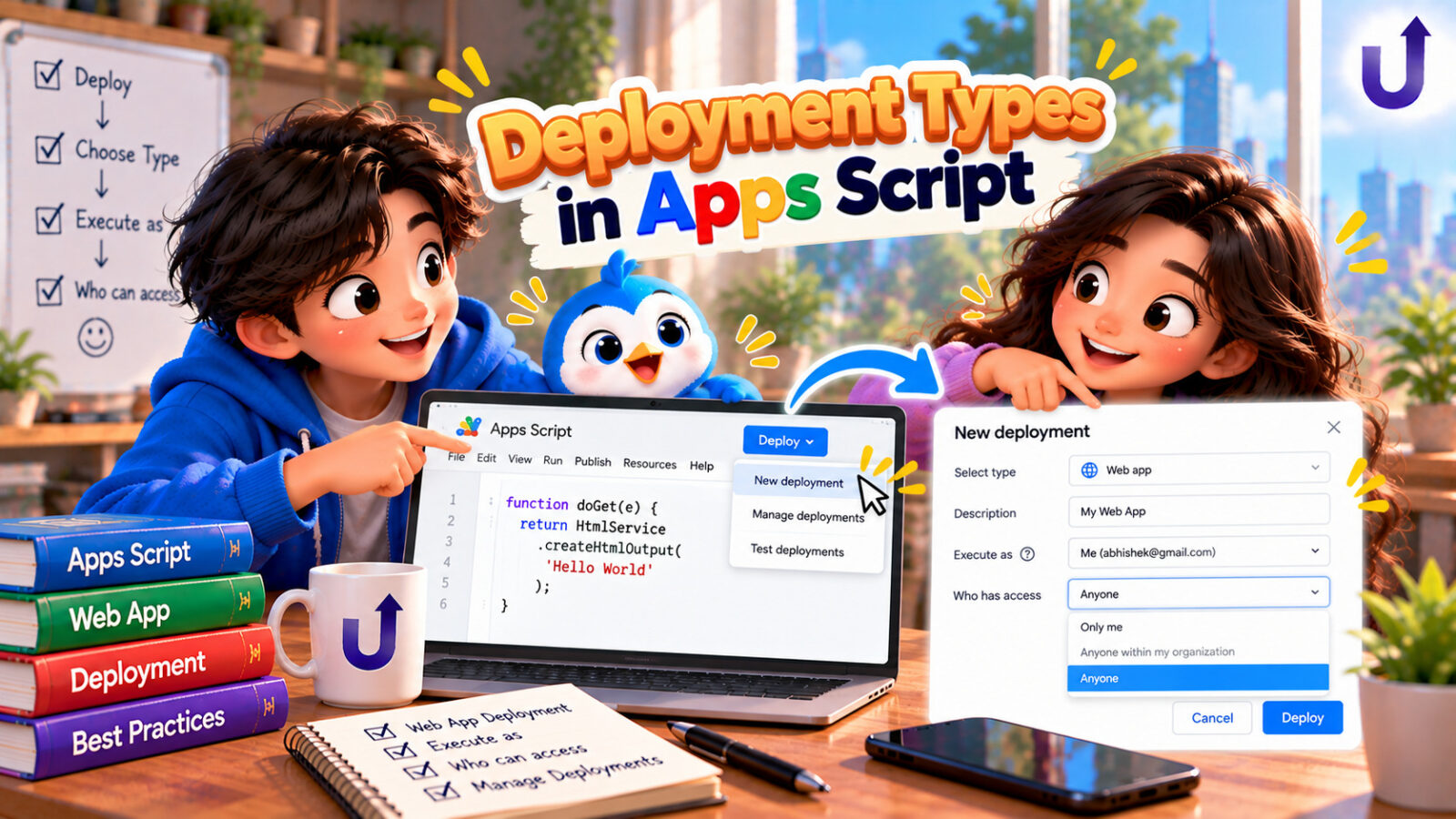
Writing a script is one thing. Deploying it is what makes it available to other people: giving a web app a URL, publishing an add-on, sharing helper code as a library, or letting another program call your functions. Apps Script has several deployment types, and the words around them (project, version, deployment, head, /dev, /exec) confuse almost everyone at first.
This post explains them in plain terms: the difference between a version and a deployment, the types you can deploy, how to update a live web app without changing its URL, what the access settings mean, and how libraries work. It follows Google’s documentation, checked in September 2026. If you have not built a web app yet, read What Is doGet in Apps Script? Explained first.
In this guide
The short version
- A version is a frozen snapshot of your code. A deployment is a release that serves one version, with its own URL or ID.
- The head deployment always runs your latest saved code: use it for testing (the
/devURL). Versioned deployments serve a fixed version: use them for real users (the/execURL). - To update a live web app and keep its URL: create a new version, then edit the deployment to use it. “New deployment” makes a different URL.
- Types: web app, API executable, editor add-on, Google Workspace add-on, Chat app, and library.
- Menus, custom functions and triggers in a sheet do not need a deployment. They run your saved code.
How the results in this post were produced. Deployments happen in Google’s editor, so nothing here can be run for real. The one code example is a small model of the rules in Google’s documentation, and the outputs come from running that model. It is an illustration of the rules, not Google’s code. Always test a deployment yourself before you send its URL to other people.
Project, version, deployment
These three words describe three different things:
| Term | What it is |
|---|---|
| Project | Your code and files, as they are right now in the editor |
| Version | A static snapshot of the project's code. Once created, a version cannot be changed |
| Deployment | A release that makes a specific version available to users. It has its own URL or ID |
Think of publishing a book. The project is your draft. A version is one printed edition, which never changes once it is printed. A deployment is the bookshop that sells one particular edition. You can keep editing the draft without touching what the bookshop sells, and later you point the bookshop at a newer edition.
Head and versioned deployments
Google describes two categories of deployment:
| Head deployment | Versioned deployment | |
|---|---|---|
| What it serves | The current project code, always the latest saved | One specific, frozen version |
| How many | Exactly one per project, created automatically | As many active ones as you want |
| Use it for | Testing only | Real users |
| Web app URL | Ends in /dev. Only people with edit access can open it | Ends in /exec. Open to whoever the access setting allows |
| When you save code | Changes at once | Does not change |
The point of a versioned deployment is stability: people keep using a version that works while you edit and break things in your project. Each deployment also has an ID string, which you can find under Deploy, then Manage deployments (IDs appear only on active deployments).
The deployment types
When you choose Deploy, then New deployment, Google lists the types you can create:
| Type | What it is for | How it is used |
|---|---|---|
| Web app | A page or an API at a URL | Visitors open the URL, or programs send GET and POST requests (doGet and doPost) |
| API executable | Letting another program run your functions | Called remotely with the Apps Script API method scripts.run |
| Editor add-on | Extending Docs, Sheets, Slides or Forms | Installed by users from within the editor. Runs onInstall(e) when installed |
| Google Workspace add-on | An add-on that works across Google Workspace apps | Published for users in Google Workspace |
| Google Chat app | A bot in Google Chat | Responds to messages in Chat |
| Library | Sharing code between projects | Other projects add your project by its script ID and call its functions |
Most people building automations for a spreadsheet only ever need the first type (web app), and libraries once they have several scripts that share code.
Creating, editing and archiving
Create. In the editor, click Deploy at the top right, then New deployment. Next to “Select type”, click the settings icon to enable deployment types, and pick the type. Enter its details and click Deploy.
Manage. Deploy, then Manage deployments lists them. Select an active deployment and click Edit to change it.
Update the code. Google’s instruction is: create a new version, and edit the deployment to use it. This updates the app for all users and keeps the same URL. If you click “New deployment” instead, you get a new deployment with a new URL, and everyone who saved the old link stays on the old version.
Retire. Select the deployment and click Archive deployment. Archiving keeps it, so you can redeploy it later. An archived deployment no longer serves users, and its ID no longer shows.
Why /exec shows old code
The most common deployment mistake is “I changed the code, but the live app still does the old thing”. The model below follows the documented rules. Watch the two columns: the head (/dev) follows every save, and the versioned deployment (/exec) moves only when you edit the deployment to use a new version:
// A toy model of the rules in Google's documentation (not Google's code):
//  - the head deployment always runs the latest SAVED code
//  - a version is an immutable snapshot
//  - a versioned deployment serves ONE version, until you edit it to use another
const project = { saved: "", versions: [], deployments: {} };

function saveCode(code)       { project.saved = code; }
function createVersion()      { project.versions.push(project.saved); return project.versions.length; }
function deploy(name, number) { project.deployments[name] = number; }

function runDev()             { return project.saved; }                                       // head, the /dev URL
function runExec(name)        { return project.versions[project.deployments[name] - 1]; }     // versioned, the /exec URL

function show(step) {
  Logger.log(step.padEnd(36) + "| /dev runs: " + runDev() + " | /exec runs: " + runExec("web"));
}
What each URL runs (model)
1. Save v1, version 1, deploy it    | /dev runs: Hello v1 | /exec runs: Hello v1
2. Edit the code, save              | /dev runs: Hello v2 | /exec runs: Hello v1
3. Create version 2 (not deployed)  | /dev runs: Hello v2 | /exec runs: Hello v1
4. Edit the deployment: version 2   | /dev runs: Hello v2 | /exec runs: Hello v2
After step 2, your own browser test on /dev looks perfect, but users still get version 1. Steps 3 and 4 are the ones people skip: create the version, and then point the deployment at it.
Web app settings
A web app asks for two settings when you deploy it. They decide who runs the code and who may open the URL:
| Setting | Choices | Meaning |
|---|---|---|
| Execute as | Me | The script always runs as you, the owner, whoever opens the app |
| Execute as | User accessing the web app | The script runs as the visitor. Each visitor approves the permissions the script needs |
| Who has access | Only myself | Only the deployer |
| Who has access | Anyone in your domain | Only people in the same Google Workspace domain |
| Who has access | Anyone with a Google account | Any signed-in Google user |
| Who has access | Anyone | Anyone, even without signing in |
Which combination to pick depends on what the app does:
| Your app | Execute as | Who has access |
|---|---|---|
| A private tool that reads or writes your sheet | Me | Only myself |
| An internal form for colleagues, writing to your sheet | Me | Anyone in your domain |
| A public read-only feed of data you chose to publish | Me | Anyone |
| An app that works with each visitor's own Drive or Gmail | User accessing the web app | Anyone with a Google account |
Be careful with “Execute as me” plus “Anyone”. Then strangers can use your permissions through your functions, so return only data you mean to publish, validate everything that comes in, and never put secrets in the response.
The same settings in appsscript.json
Every project has a manifest file called appsscript.json, which holds settings such as the time zone and the runtime. To see it, open Project Settings and switch on “Show appsscript.json manifest file in editor”. For a web app, the webapp object stores the two settings above. USER_DEPLOYING means “execute as me” and USER_ACCESSING means “execute as the user accessing the web app”. For access, the values are MYSELF, DOMAIN, ANYONE (any signed-in user) and ANYONE_ANONYMOUS (anyone, even if not signed in):
{
  "timeZone": "Asia/Kolkata",
  "runtimeVersion": "V8",
  "webapp": {
    "executeAs": "USER_DEPLOYING",
    "access": "ANYONE"
  }
}
Libraries
A library lets several projects share the same functions, so you fix a bug once. To create one, make a versioned deployment of the script, share it with at least view access with everyone who will use it, and give them its script ID (in Project Settings). In the project that uses it, click Add a library next to Libraries, paste the script ID, choose a version from the drop-down, check the identifier, which is the name you will use in your code, and click Add. Then call it like an object:
// In the library project (deployed and shared). Its identifier in the other project will be "Utils".
function addGst(amount) {
  return Math.round(amount * 1.18 * 100) / 100;
}
Result (simulated)
295Some things to know, from Google’s documentation:
- A script that uses a library does not run as quickly as one in a single project.
- Simple triggers written inside a library are not triggered by the project that includes it.
- You cannot step into library code in the debugger. Debug it from the library’s own project, or use logging.
- To test a library, editors can use its head deployment, but you still need at least one saved version.
API executables
An API executable deployment lets another program run one of your functions through the Apps Script API (the scripts.run method). It is for developers who integrate Apps Script with an outside application. The requirements are strict: the script and the calling application must share one standard Google Cloud project, the caller needs an OAuth token that covers all the scopes the script uses, and the Apps Script API must be enabled. The API cannot pass or return Apps Script objects such as Documents or Drive files, and it cannot create triggers. If you only need to receive requests from the outside, a web app with doPost is usually simpler.
What needs no deployment
You do not always need to deploy. A script bound to a spreadsheet already runs your saved code for its custom menus (onOpen), custom functions, simple triggers such as onEdit, and installable triggers such as time-driven triggers. Deployment is for things that other people or programs reach from the outside: web apps, add-ons, libraries and API executables.
Common mistakes
- Editing the code and expecting the
/execURL to change. Create a new version and edit the deployment to use it. - Clicking “New deployment” to update. That creates a different URL. Use Manage deployments, then Edit, then a new version.
- Sharing the
/devURL. Only people with edit access can open it. Give users the/execURL. - Choosing “Execute as me” and “Anyone” without thinking. Anyone can then run your code with your permissions.
- Choosing “Execute as user” and expecting to use your own sheet. The script runs as the visitor, who may have no access to your files.
- Forgetting to share a library. Users need at least view access, and the script ID.
- Testing a library with no saved version. Even the head deployment needs at least one saved version.
- Deleting instead of archiving. Archive a deployment to retire it, and you can redeploy it later.
Try it yourself
Work out each answer first, then open the solution.
1. Ten of your sheets share the same tax function. Which deployment type helps, and why?
Show solution
A library. Put the function in one project, make a versioned deployment, share it, and add it to the other ten projects by script ID. A fix is then made in one place. Remember that a library runs a little slower and the projects choose which version to use.
2. Your web app is live at a URL that colleagues have bookmarked. You fixed a bug. How do you release the fix without changing the URL?
Show solution
Deploy, then Manage deployments, select the active deployment, click Edit, choose New version in the version drop-down, and click Deploy. The deployment keeps its URL and serves the new version.
3. Write the webapp part of the manifest for an app that runs as you, and only for people in your Google Workspace domain.
Show solution
{
  "runtimeVersion": "V8",
  "webapp": {
    "executeAs": "USER_DEPLOYING",
    "access": "DOMAIN"
  }
}
USER_DEPLOYING is “execute as me” and DOMAIN limits access to the domain.
4. Why can you test on the /dev URL but you should not give it to users?
Show answer
The /dev URL belongs to the head deployment. It always runs your latest saved code, including half-finished changes, and only people with edit access can open it. Real users need a versioned deployment and its /exec URL.
Frequently asked questions
What are the deployment types in Google Apps Script?
Web app, API executable, editor add-on, Google Workspace add-on and Google Chat app. A script project can also be shared as a library.
What is the difference between a version and a deployment?
A version is a frozen snapshot of your code. A deployment is a release that serves one version to users, with its own URL or ID. You can change which version a deployment serves.
How do I update a deployed web app without changing the URL?
Create a new version, then go to Deploy, Manage deployments, edit the deployment, and select the new version. The URL stays the same. Choosing New deployment creates a new URL.
What is the difference between /dev and /exec?
/dev is the test URL of the head deployment. It always runs the latest saved code and only editors can open it. /exec is the URL of a versioned deployment for real users.
What does Execute as me mean?
The web app always runs with the owner’s identity and permissions, whoever opens it. “Execute as user accessing the web app” runs it as the visitor instead.
Do I need to deploy a script to use onEdit or a time trigger?
No. Triggers, custom menus and custom functions in a sheet-bound script run your saved code. Deployment is for web apps, add-ons, libraries and API executables.
Related reading
- What Is doGet in Apps Script? Explained – the function a web app runs.
- Build a Web App Frontend With Apps Script – a page to deploy.
- Apps Script Time Triggers: Cron for Google Sheets – automation without a deployment.
- Google Apps Script for Beginners: A Simple Intro – start here.