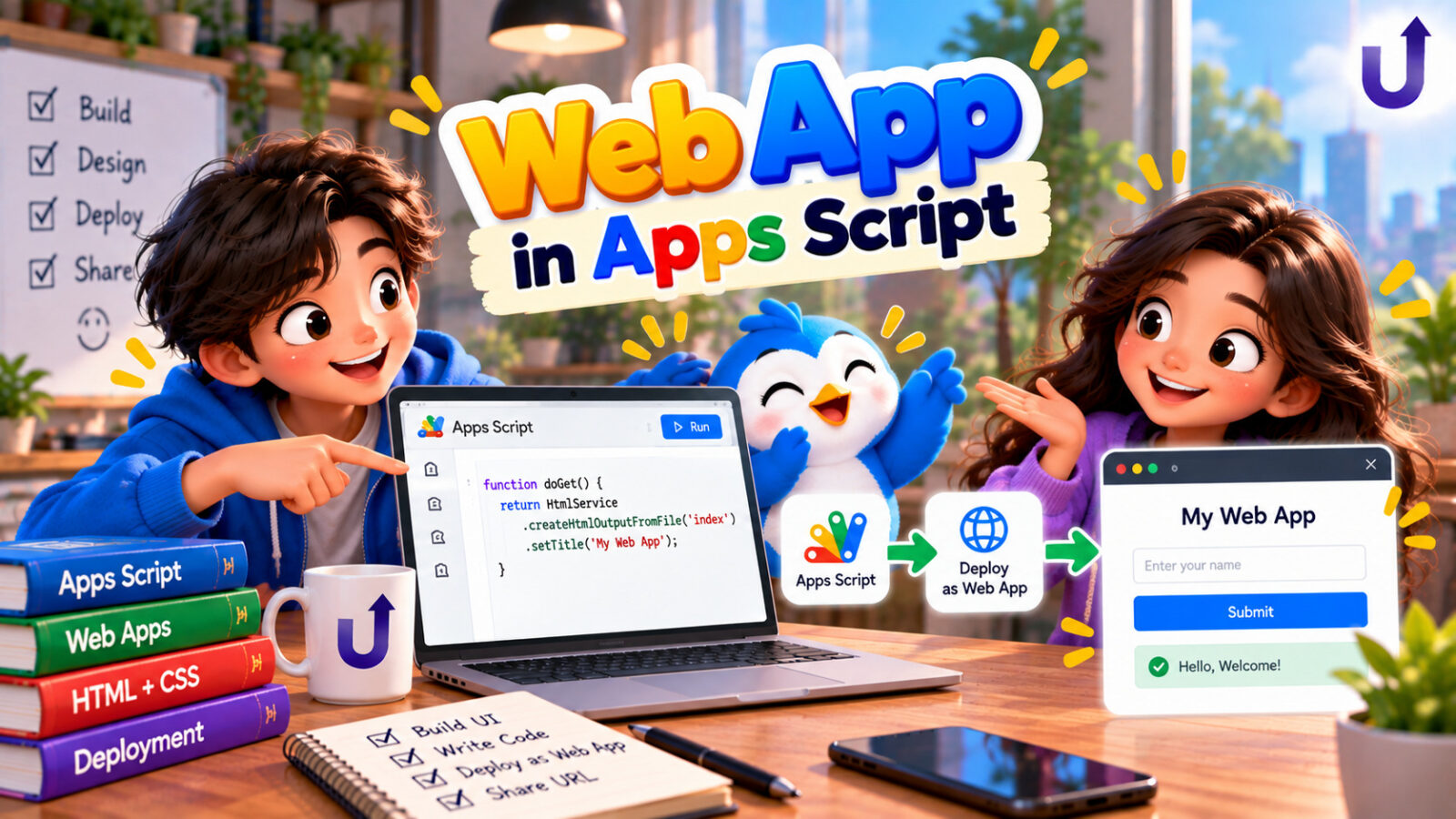
An Apps Script web app can do more than return text or JSON: it can serve a real page with a form, a list and buttons, styled with CSS and driven by JavaScript in the visitor’s browser, all backed by your Google Sheet. Google calls the part that serves such pages the HTML Service. It is a quick way to give your team a small tool without hosting anything: a task tracker, a request form, a lookup page.
This post builds one small app from start to finish: a team task list that reads from a sheet and lets people add tasks. You will see how the server and the browser talk to each other with google.script.run, how to split the page into files, and the mistakes that trip up most beginners. It builds on What Is doGet in Apps Script? Explained, so read that first if doGet is new to you.
In this guide
The short version
doGet()returns an HtmlOutput made from an HTML file, so the visitor gets a real web page.- Code in the browser (HTML, CSS, JavaScript) and code on Google’s server (Apps Script) are two separate worlds. They talk through
google.script.run. googleis asynchronous: use.script .run .serverFunction() withSuccessHandlerandwithFailureHandler, do not expect a return value.- Pass and return plain data only: numbers, strings, booleans, arrays and simple objects. A
Dateor a function fails. - Split big pages into files with an
include()function, and load data after the page is shown.
How the results in this post were produced. Apps Script runs only on Google’s servers, so the exact code shown was run against a small simulation of the Sheets service (an in-memory sheet with the same method names). The logic of the script is real, but the sheet and the log are simulated, and the clock was fixed at Monday 16 March 2026, 09:30 India time. Always try a script on a copy of your own sheet first.
The browser part was simulated too: a tiny fake page and a fake google.script.run ran the page’s JavaScript against the server code. In a real browser the server calls are asynchronous, so there is a short pause before the list appears.
The two halves: server and browser
The most important idea is that your app has two halves that do not share anything:
Browser (the visitor's computer)              Google's server

 Index.html, Style.html, Script.html   ---- google.script.run ---->   Code.gs
  shows the page, runs on click          <--- success or failure ---    reads and writes the Sheet
The server half is normal Apps Script: it can open the spreadsheet, send mail and so on. The browser half is HTML, CSS and JavaScript, the same as on any website, but it cannot touch the spreadsheet. When the page needs data, it asks the server, using google.script.run, and the server function’s answer comes back to a function you provide. Google notes that the HTML Service runs pages in a sandbox, which restricts some HTML5 features, so keep the page simple.
The four files
In the editor, add HTML files with the plus button next to Files. Even a stylesheet or a script goes in an .html file, wrapped in <style> or <script> tags. Google’s advice is to avoid one giant file. We use four:
| File | What it holds |
|---|---|
| Code.gs | Server code: doGet(), include(), getTasks(), addTask() |
| Index.html | The page structure. It pulls in the other two files |
| Style.html | The CSS, inside a style tag |
| Script.html | The browser JavaScript, inside a script tag |
Code.gs: the server side
Four functions. doGet() builds the page from the Index file as a template (so that scriptlets in it run) and gives it a title. include() returns the content of another HTML file, so Index.html can insert it. getTasks() reads the sheet and returns a list of plain objects. addTask() checks its input, writes a row, and returns the new list. Note that the server never trusts the browser: it validates the task itself:
const SHEET_ID = "YOUR_SPREADSHEET_ID";        // the long id in the sheet's URL

function doGet() {
  return HtmlService.createTemplateFromFile("Index")
      .evaluate()
      .setTitle("Team tasks");
}

// lets Index.html pull in Style.html and Script.html
function include(filename) {
  return HtmlService.createHtmlOutputFromFile(filename).getContent();
}

// called from the page: returns plain data only
function getTasks() {
  const rows = SpreadsheetApp.openById(SHEET_ID).getSheetByName("Tasks")
      .getDataRange().getValues().slice(1);                 // drop the header
  return rows.map(row => ({ task: row[0], status: row[1], owner: row[2] }));
}

// called from the page: validates, writes, and returns the fresh list
function addTask(task, owner) {
  const clean = String(task).trim();
  if (!clean) throw new Error("Please enter a task");
  SpreadsheetApp.openById(SHEET_ID).getSheetByName("Tasks")
      .appendRow([clean, "Open", String(owner).trim() || "Unassigned"]);
  return getTasks();
}
Server checks (simulated)
Page title: Team tasks
Style included: true
Script included: true
Scriptlets left in the page: false
The page came out complete: the title is set, the style and script files were included, and no scriptlet was left unprocessed.
Index.html, Style.html and Script.html
The page starts with <!DOCTYPE html> so that the browser uses modern rendering. The two lines with <?!= include(...); ?> are scriptlets: when the page is built on the server, each one is replaced with the file it names. (The force-printing form <?!= ?> is right here, because the included content is your own trusted HTML. For anything a visitor supplies, use <?= ?>, which escapes it.) The script is placed at the end of the page, so the HTML shows up before the JavaScript runs:
<!DOCTYPE html>
<html>
  <head>
    <?!= include("Style"); ?>
  </head>
  <body>
    <h1>Team tasks</h1>
    <ul id="list"><li>Loading...</li></ul>

    <form id="form">
      <input id="task" placeholder="New task">
      <input id="owner" placeholder="Owner">
      <button type="submit">Add</button>
    </form>
    <p id="message" class="error"></p>

    <?!= include("Script"); ?>
  </body>
</html>
The stylesheet is plain CSS:
<style>
  body { font-family: sans-serif; max-width: 480px; margin: 24px auto; }
  li { padding: 4px 0; }
  .error { color: #b00020; }
</style>
The browser script does three things: render() draws the list, showError() displays a message, and a submit handler calls the server. At the bottom it asks the server for the list as soon as the page has loaded:
<script>
  function render(tasks) {
    const list = document.getElementById("list");
    list.innerHTML = "";
    tasks.forEach(function (t) {
      const li = document.createElement("li");
      li.textContent = t.task + " (" + t.status + ", " + t.owner + ")";   // textContent is safe
      list.appendChild(li);
    });
    document.getElementById("message").textContent = "";
  }

  function showError(error) {
    document.getElementById("message").textContent = error.message;
  }

  document.getElementById("form").addEventListener("submit", function (event) {
    event.preventDefault();
    google.script.run
        .withSuccessHandler(render)
        .withFailureHandler(showError)
        .addTask(document.getElementById("task").value,
                 document.getElementById("owner").value);
  });

  // load the list after the page is shown
  google.script.run.withSuccessHandler(render).withFailureHandler(showError).getTasks();
</script>
How the browser calls the server
google.script.run is Google’s bridge. Calling google.script.run.addTask("Pay rent", "Chen") runs the server function addTask with those arguments. Three rules:
- It is asynchronous. The browser does not wait: the line after the call runs immediately, and the answer arrives later. So you cannot write
const tasks = google.script.run.getTasks(). Instead, attach awithSuccessHandler(fn), and Google callsfnwith the return value. - Failures need their own handler. If the server function throws an error,
withFailureHandler(fn)is called with the Error object, anderror.messageholds your message. - Only plain data travels. Arguments and return values may be numbers, booleans, strings, null, and objects or arrays made of them (and a form element from the page). Google’s documentation says requests fail if you pass a
Date, a function or another DOM element. Convert dates to strings on the server first.
The app in action
Here is a session, simulated. The sheet has two tasks. The page loads and shows them. The user types “Pay rent” with owner “Chen” and presses Add, and the list gains a third task. Then they press Add with an empty task, and the server’s validation message appears. Nothing was added to the sheet:
What the page showed (simulated)
On load:       Write report (Open, Asha) | Send invoice (Done, Ben)
After adding:  Write report (Open, Asha) | Send invoice (Done, Ben) | Pay rent (Open, Chen)
Error message: Please enter a task| A | B | C | |
|---|---|---|---|
| 1 | Task | Status | Owner |
| 2 | Write report | Open | Asha |
| 3 | Send invoice | Done | Ben |
| 4 | Pay rent | Open | Chen |
Templates or google.script.run?
There are two ways to get data into a page. A template scriptlet runs on the server when the page is built and can insert values straight into the HTML. google.script.run fetches the data after the page is already showing. Google’s guidance is to use scriptlets only for quick, one-time jobs such as including other files or setting fixed values, and to load all other data with google.script.run. The reason: a template’s code runs to completion before anything is sent to the browser, so slow work in a template leaves the visitor looking at a blank screen. Our page shows “Loading…” at once and fills the list when the data arrives.
Security
- Show visitor text with
textContent, notinnerHTML. If a task were<img src=x onerror=...>,innerHTMLwould run it, whiletextContentjust displays it. - Validate on the server. Anyone can call your server functions with any argument, not just your page.
addTask()trims and checks its input itself. - Nothing in the page is secret. The browser downloads your HTML and JavaScript, so never put keys or private data in them.
- Mind the deployment settings. “Execute as me” with “Anyone” lets strangers use your permissions through your functions. See Apps Script Deployment Types Explained.
- Return only what the page needs.
getTasks()returns three fields, not the whole sheet.
Publishing it
Nobody can open the app until you deploy it: Deploy, then New deployment, choose Web app, set who can use it, and copy the URL that ends in /exec. While developing, use a test deployment: its /dev URL, which only editors can open, always runs your latest saved code. After you change the code, the /exec URL keeps serving the old version until you create a new version and update the deployment. That last step is the one people forget, and it is explained in the deployment post.
Common mistakes
- Expecting a return value from
google.script.run. It returns immediately. The answer arrives in the success handler. - Returning a
Dateor a class instance. Convert to strings and plain objects on the server. - No failure handler. When the server throws, nothing happens on the page, and the user thinks the app froze.
- Putting
<script>in the head. The elements do not exist yet, andgetElementByIdreturns null. Put it at the end of the body. - Loading big data in a template. The page stays blank until the template finishes. Load it with
google.script.run. - Forgetting the
include()function.<?!= include("Style"); ?>fails if the function is not inCode.gs. - File names.
include("style")does not findStyle.html. The name must match exactly, without the extension. - Not redeploying. Your changes are visible on
/devbut not on/execuntil a new version is deployed.
Try it yourself
Work out each answer first, then open the solution.
1. Write a server function countOpen() that returns the number of open tasks, and show it on the page as “1 open”.
Show solution
function countOpen() {
  const rows = SpreadsheetApp.openById("YOUR_SPREADSHEET_ID")
      .getSheetByName("Tasks").getDataRange().getValues().slice(1);
  return rows.filter(row => row[1] === "Open").length;
}
What the page showed (simulated)
The page shows: 1 openThe server returns a plain number. The success handler writes it into the page. The page never touches the sheet.
2. A sheet has a due-date column. Return the tasks and their due dates to the page.
Show solution
function getDueDates() {
  const rows = SpreadsheetApp.openById("YOUR_SPREADSHEET_ID")
      .getSheetByName("Due").getDataRange().getValues().slice(1);
  return rows.map(row => ({
    task: row[0],
    due: Utilities.formatDate(row[1], Session.getScriptTimeZone(), "yyyy-MM-dd")   // a string, not a Date
  }));
}
Server result (simulated)
[{"task":"Write report","due":"2026-03-20"}]A Date cannot be sent to the browser, so the server formats it into a string first.
3. Why is li.textContent = ... safer than li.innerHTML = ... in render()?
Show answer
textContent treats the value as plain text, so a task such as <script>...</script> is only displayed. innerHTML parses the value as HTML and may run it, which lets a visitor inject code into your page.
4. Your page shows “Loading…” forever. What are the first two things to check?
Show answer
First, whether the server function threw an error and there is no failure handler (add withFailureHandler and look at Executions). Second, whether the function returned something that cannot be sent, such as a Date, which makes the call fail.
Frequently asked questions
How do I build a frontend for Google Apps Script?
Add HTML files to your project, return one from doGet() with HtmlService, and deploy the script as a web app. In the page, use google.script.run to call your server functions.
What is google.script.run?
It is the client-side JavaScript API that lets a page served by Apps Script call server-side functions. Calls are asynchronous, and results come back through withSuccessHandler and withFailureHandler.
How do I include CSS and JavaScript files in an Apps Script web app?
Put them in HTML files (inside style and script tags), add an include(filename) function that returns HtmlService, and insert them in the page with <?!= include("Name"); ?>.
Why does my google.script.run call return undefined?
Because the call is asynchronous. It does not return the server’s result. Pass a function to withSuccessHandler() to receive the result.
What can I pass between the browser and the server?
Numbers, booleans, strings, null, and objects and arrays made of them. Passing a Date, a function or a DOM element (other than a form) makes the call fail.
Can I use React or another framework in an Apps Script web app?
The HTML Service serves ordinary HTML, CSS and JavaScript, and libraries served over HTTPS can be loaded in the page, for example jQuery. Bigger frameworks need a build step and are outside the scope of this guide.
Related reading
- What Is doGet in Apps Script? Explained – how a web app is called.
- Apps Script Deployment Types Explained – versions, test URLs and access.
- Google Apps Script for Beginners: A Simple Intro – the basics.
- onOpen in Apps Script: How It Works, Use Cases – menus, dialogs and sidebars.