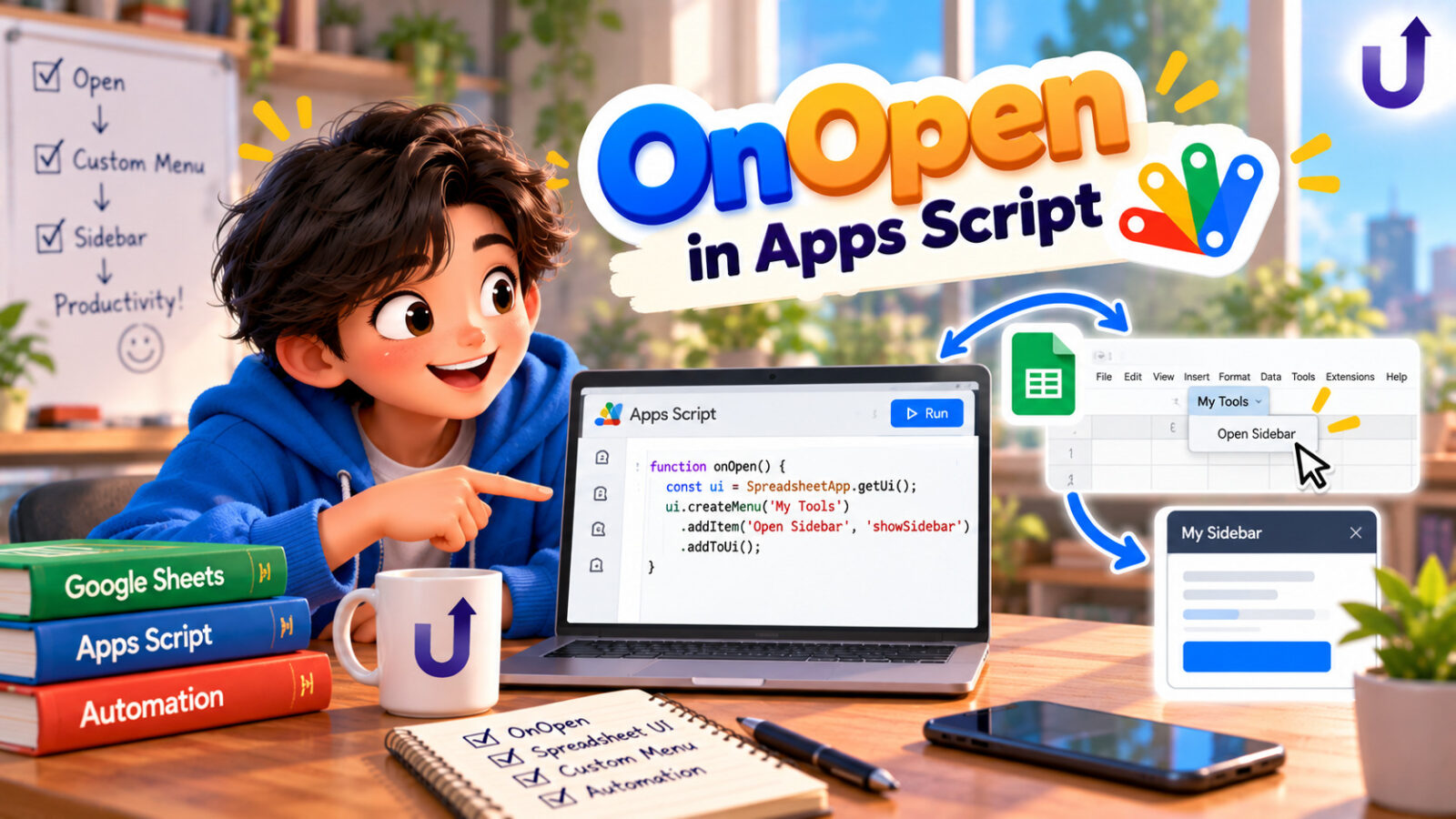
onOpen is a function that Google Sheets runs by itself every time someone opens the spreadsheet. Its most common job is to add a custom menu to the toolbar, so that people can run your scripts with a click instead of opening the code editor. It can also greet the user, jump to a sheet, or stamp the time the file was opened.
This post explains how onOpen works, how to build menus (with separators and submenus), a few other use cases, and what it cannot do. It is a companion to onEdit in Apps Script: How It Works, Use Cases. If you are new to Apps Script, start with Google Apps Script for Beginners: A Simple Intro.
In this guide
The short version
- Name a function
onOpen(e)in a script bound to a spreadsheet. It runs when a user who can edit opens the file. - The classic use is a menu:
SpreadsheetApp..getUi() .createMenu(...) .addItem(label, "functionName") .addToUi() - Menu items call a function by name, written as a string. A typo there fails only when someone clicks.
- As a simple trigger it cannot use services that need authorization, and it stops after 30 seconds. Keep it short.
- Put the real work in the functions behind the menu items, not in
onOpenitself.
How the results in this post were produced. Apps Script runs only on Google’s servers, so the exact code shown was run against a small simulation of the Sheets service (an in-memory sheet with the same method names). The logic of the script is real, but the sheet and the log are simulated, and the clock was fixed at Monday 16 March 2026, 09:30 India time. Always try a script on a copy of your own sheet first.
How onOpen works
onOpen(e) is a simple trigger, like onEdit. Google runs it automatically when someone opens a spreadsheet, document, presentation or form that they can edit. You write the function, save, and it works, with no installation. The rules of simple triggers apply:
- It does not run if the file is opened in read-only (view or comment) mode.
- It can change the file it is bound to, but it cannot open other files.
- It cannot use services that need authorization.
- It must finish within 30 seconds.
For Google Forms, it runs when the form is opened to be edited, not when someone answers it.
Use case 1: a custom menu
A menu is built with SpreadsheetApp.getUi(). createMenu() gives it a name, addItem(label, functionName) adds an item and says which function to run, addSeparator() draws a line, addSubMenu() nests another menu, and addToUi() puts the menu in the toolbar. Here is a menu for the sales sheet from the intro, with the functions behind it:
function onOpen() {
  const ui = SpreadsheetApp.getUi();
  ui.createMenu("Sales tools")
    .addItem("Add a sample order", "addSampleOrder")
    .addItem("Sort by amount (high to low)", "sortByAmount")
    .addSeparator()
    .addSubMenu(ui.createMenu("Reports").addItem("Log the total", "logTotal"))
    .addToUi();
}

function addSampleOrder() {
  SpreadsheetApp.getActiveSheet().appendRow([1004, "Pencil box", 120, "Pending"]);
}

function sortByAmount() {
  const sheet = SpreadsheetApp.getActiveSheet();
  const range = sheet.getRange(2, 1, sheet.getLastRow() - 1, 4);   // every row except the header
  const rows = range.getValues();
  rows.sort((a, b) => b[2] - a[2]);                                // biggest amount first
  range.setValues(rows);
}

function logTotal() {
  const rows = SpreadsheetApp.getActiveSheet().getDataRange().getValues().slice(1);
  Logger.log("Total: %s", rows.reduce((sum, row) => sum + row[2], 0));
}
The functions addSampleOrder, sortByAmount and logTotal are ordinary functions. The menu only connects a label to a function. This is what the simulation builds:
Menu created (simulated)
Menu "Sales tools": Add a sample order -> addSampleOrder() | Sort by amount (high to low) -> sortByAmount() | --- | Reports > [Log the total]A file can have only one menu with a given name. If a script adds a menu with a name that already exists, the new one replaces the old one.
What happens when someone clicks
Clicking a menu item runs the function you named, with the permissions of the person who clicked. So, unlike onOpen itself, a menu item’s function can use services that need authorization. The first time, Google asks the user to approve the script. That is why the pattern is: keep onOpen tiny and only build the menu, and put the real work in the functions behind it.
Below we click “Add a sample order”, then “Sort by amount”, and finally “Reports” and “Log the total”:
| A | B | C | D | |
|---|---|---|---|---|
| 1 | Order | Product | Amount | Status |
| 2 | 1003 | Bag | 900 | Paid |
| 3 | 1001 | Notebook | 250 | Paid |
| 4 | 1004 | Pencil box | 120 | Pending |
| 5 | 1002 | Pen | 40 | Pending |
Execution log (simulated)
Total: 1310The new order (1004) was added, and the sort put the biggest amount first. The total is 1,310 with the new order.
Use case 2: a message when the file opens
A toast is a small message that appears in the corner of the sheet and disappears by itself. It is a friendly way to flag something when the file opens, for example how many tasks are overdue. The event object e.source is the spreadsheet. Here is the sheet, with a fixed “today” of 16 March 2026:
| A | B | C | D | |
|---|---|---|---|---|
| 1 | Task | Status | Due | Notes |
| 2 | Write report | In progress | 2026-03-10 | Needs charts |
| 3 | Send invoice | Done | 2026-03-09 | |
| 4 | Update website | In progress | 2026-03-20 | Waiting for copy |
| 5 | Renew domain | In progress | 2026-03-14 |
function onOpen(e) {
  const tz = Session.getScriptTimeZone();
  const today = Utilities.formatDate(new Date(), tz, "yyyy-MM-dd");
  const rows = e.source.getSheetByName("Tasks").getDataRange().getValues().slice(1);
  const overdue = rows.filter(row =>
    row[1] !== "Done" && row[2] && Utilities.formatDate(row[2], tz, "yyyy-MM-dd") < today
  ).length;
  if (overdue > 0) {
    e.source.toast(overdue + " task(s) are overdue", "Check the Tasks sheet", 5);
  }
}
Toast shown (simulated)
Toast [Check the Tasks sheet]: 2 task(s) are overdueTwo tasks are overdue: “Write report” (due 10 March) and “Renew domain” (due 14 March). “Send invoice” was also past its date, but it is Done. The dates are compared as year-month-day text (in the script’s time zone) so that the comparison does not depend on the time of day. The toast only appears when there is something to say.
Use case 3: open on the right tab
Files that other people open are easier to use when they always land on the same tab, such as a dashboard, and not on whichever tab was used last. Sheet.activate() switches to it:
function onOpen(e) {
  const dashboard = e.source.getSheetByName("Dashboard");
  if (dashboard) {
    dashboard.activate();                        // open on the Dashboard tab, not the last tab used
  }
}
Execution log (simulated)
Before onOpen: Data
After onOpen: Dashboard
Use case 4: stamp the last time it was opened
Because onOpen may change the file it is bound to, it can write a value into a cell. Here it records when the file was last opened:
function onOpen(e) {
  const stamp = Utilities.formatDate(new Date(), Session.getScriptTimeZone(), "yyyy-MM-dd HH:mm");
  e.source.getSheetByName("Dashboard").getRange("B1").setValue("Last opened: " + stamp);
}| A | B | |
|---|---|---|
| 1 | Sales dashboard | Last opened: 2026-03-16 09:30 |
| 2 | Total | 1190 |
If you only need today’s date to be shown, the formula =TODAY() does that without any code. Use a script when you want to store a value that must not change afterwards.
What onOpen cannot do
| You want to… | In onOpen? | Instead |
|---|---|---|
| Build a menu | Yes | This is what it is for |
| Show a toast, switch tabs, write to the file | Yes | – |
| Send an email or fetch a web page | No, needs authorization | Do it in a menu item, or in an installable trigger |
| Read or write a different spreadsheet | No | A menu item or an installable trigger |
| Work for a person with view-only access | No, it does not run | Share with edit access, or use a web app |
| Run for longer than 30 seconds | No | Move the heavy work to a menu item |
The installable open trigger
When you do need something more on open, such as fetching data from the web, create an installable open trigger. It runs as the person who created it, and it can use services that need authorization. As with onEdit, give the function a different name, so the same function does not run twice:
function refreshOnOpen() {
  // an installable trigger may use services that need authorization,
  // for example UrlFetchApp or MailApp; this one only logs
  Logger.log("Opened by the account that created the trigger");
}

// Run this once. It installs the trigger for the current spreadsheet.
function createOpenTrigger() {
  const ss = SpreadsheetApp.getActiveSpreadsheet();
  ScriptApp.newTrigger("refreshOnOpen").forSpreadsheet(ss).onOpen().create();
}
Execution log (simulated)
Installed: refreshOnOpen <- forSpreadsheet(ss).onOpen()Installable triggers run for the person who created them, so they are best for a file you own and manage. For actions the visitor should trigger, use a menu item.
Testing onOpen
Unlike onEdit, you can press Run on onOpen in the editor, as long as the function does not use the event object e. That is why the menu example uses SpreadsheetApp.getUi() and not e.source. Running it once from the editor builds the menu straight away. Otherwise the menu appears the next time the sheet is loaded, so after you add or change onOpen, reload the sheet to see the change.
Common mistakes
- A typo in the function name.
addItem("Sort", "sortbyamount")looks fine until someone clicks and gets a “function not found” error. The name in the string must match the function exactly, including capitals. - Putting the real work in
onOpen. It slows every opening of the file, has a 30-second limit and cannot use authorized services. Only build the menu there. - Expecting a menu for view-only users.
onOpendoes not run for them, so they see no menu. - Forgetting to reload. A new menu only shows after
onOpenhas run. Reload the sheet or runonOpenonce from the editor. - Using a standalone script. A simple trigger needs a script that is bound to a Sheets, Docs, Slides or Forms file.
- Calling
getUi()where there is no open file. A time-driven trigger has no screen, so menus and dialogs are not available there. - Two menus with the same name. The new one replaces the old one. Give each menu a different name, or add all items in a single place.
Try it yourself
Use the Tasks sheet from the toast example. Work out each answer first, then open the solution.
1. Add a menu called “Cleanup” with an item that clears the whole Notes column (column D) below the header.
Show solution
function onOpen() {
  SpreadsheetApp.getUi()
    .createMenu("Cleanup")
    .addItem("Clear the Notes column", "clearNotes")
    .addToUi();
}

function clearNotes() {
  const sheet = SpreadsheetApp.getActiveSpreadsheet().getSheetByName("Tasks");
  sheet.getRange(2, 4, sheet.getLastRow() - 1, 1).clearContent();   // column D, every row below the header
}| A | B | C | D | |
|---|---|---|---|---|
| 1 | Task | Status | Due | Notes |
| 2 | Write report | In progress | 16 Mar | |
| 3 | Update website | In progress | 20 Mar |
The menu only connects a label to clearNotes. The function clears rows 2 to the last row of column 4 with one clearContent() call.
2. When the file opens, show a toast with the number of tasks.
Show solution
function onOpen(e) {
  const rows = e.source.getSheetByName("Tasks").getLastRow() - 1;
  e.source.toast(rows + " tasks in this sheet");
}
Toast shown (simulated)
Toast: 3 tasks in this sheetThe header row is not a task, so subtract 1 from getLastRow().
3. You added onOpen and saved, but the menu does not appear. What should you try?
Show answer
Reload the spreadsheet, or run onOpen once from the editor. The menu is built when onOpen runs, and it does not run just because you saved. Also check that the script is bound to this spreadsheet and that you have edit access.
4. Why should the code that sends an email be in a menu item’s function and not in onOpen?
Show answer
onOpen is a simple trigger and cannot use services that need authorization, such as sending mail. A menu item runs when the user clicks it, and Google asks them to approve the script at that point.
Frequently asked questions
What is onOpen in Google Apps Script?
It is a simple trigger: a function named onOpen(e) that runs automatically when a user with edit access opens a spreadsheet, document, presentation or form that the script is bound to.
How do I add a custom menu in Google Sheets?
Write an onOpen() function that calls SpreadsheetApp. Reload the sheet, and the menu appears in the toolbar.
Why is my custom menu not showing?
The usual causes are that onOpen has not run yet (reload the sheet or run it from the editor), the script is not bound to this spreadsheet, you only have view access, or the function has an error. Check Executions in the editor.
Can onOpen send an email?
Not as a simple trigger, because sending mail needs authorization. Put the email code in a function behind a menu item, or use an installable open trigger.
What is the difference between onOpen and an installable open trigger?
A simple onOpen works with no set-up but cannot use authorized services. An installable open trigger is created by you, can use those services, and runs as the account that created it.
Does onOpen run every time the sheet is opened?
It runs when a user with edit access opens the file, and also when the page is reloaded. It does not run for view-only or comment-only access.
Related reading
- onEdit in Apps Script: How It Works, Use Cases – the other simple trigger.
- Google Apps Script for Beginners: A Simple Intro – the basics.
- Apps Script Time Triggers: Cron for Google Sheets – scheduled runs, with no one opening the file.
- Apps Script Deployment Types Explained – sharing your script with others.